
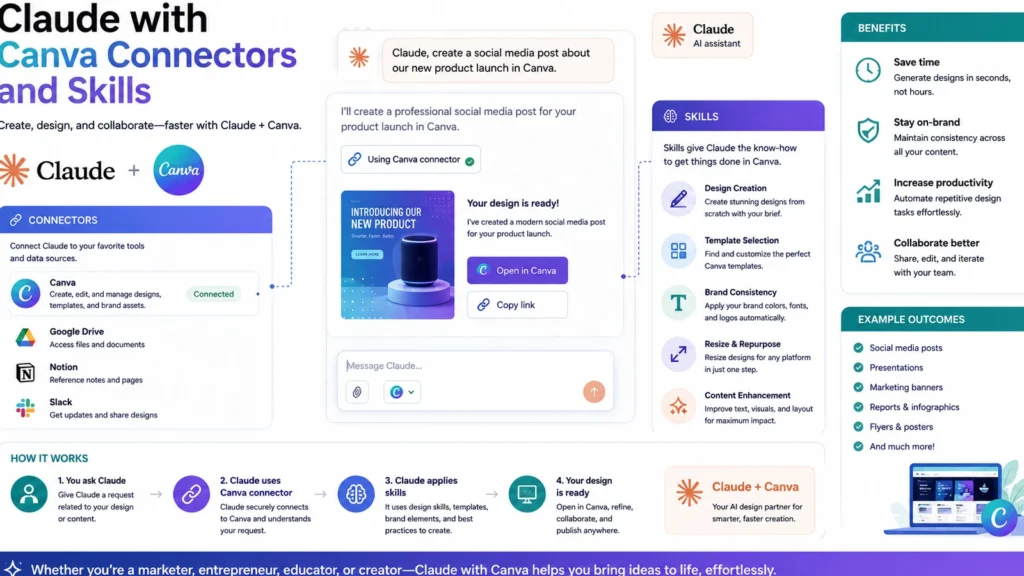
Design work often involves a lot of repetitive steps. Checking brand colors, resizing a poster for five social platforms, or building fifty near-identical certificates by hand. Claude can now connect directly to Canva to handle exactly that kind of repetitive design work.
This isn’t a generic “AI can help with design” claim. There’s a specific, real Canva integration available, with named skills built for specific design tasks. Here’s exactly what it does.
The Canva Connector Itself
At the core of this integration sits a dedicated Canva MCP server. This connector lets Claude search, create, autofill, and export designs directly. It includes tools for searching existing designs and pulling design content. It can also import designs from a URL and check import status.
Once connected, Claude can read and act on your actual Canva designs. That’s different from just describing design advice in the abstract.
The Specific Skills Built on Top of It
Beyond the raw connector, a set of named skills handles common design workflows.
Canva Brand Check
This skill checks an existing design against your brand kit directly. It flags off-palette colors, non-brand fonts, logo misuse, and off-tone copy. It’s read-only, meaning it reports problems without changing anything itself. Use it when you want to know if a design is genuinely on-brand.
Canva Bulk Create
This skill generates many designs at once from tabular data. It uses a brand template with autofill fields, producing one design per row. It accepts uploaded files, pasted tables, JSON, or URLs as input. This is the skill for generating fifty personalized certificates or event badges quickly.
Canva Edit Design
This is the core editing skill other Canva skills build on top of. It can change or fix text, and replace or insert images and videos. It can also reformat text size, weight, color, and alignment directly. Repositioning, resizing elements, and updating a design’s title are handled here too.
Canva Design Feedback
This skill reads a design and returns structured, actionable feedback. It covers visual hierarchy, copy and messaging, layout, spacing, and consistency. Readability and accessibility get evaluated too, all without changing the design itself. Use it when you want a design critique before sharing something publicly.
Canva Implement Feedback
This skill reads actual reviewer comments left directly on a design. It synthesizes what reviewers actually want, then makes the clear-cut changes itself. Anything genuinely ambiguous gets flagged for a human decision instead of guessed at. This turns a comment thread into applied edits automatically.
Canva Resize for Social Media
This skill resizes one design into multiple social formats at once. That includes Facebook posts, Facebook stories, Instagram posts, Instagram stories, and LinkedIn posts. Instead of manually resizing for each platform separately, it handles all of them together.
What a Real Workflow Looks Like
A practical sequence might look like this. Start by asking for design feedback on a flyer before it goes out. Then ask Claude to implement the specific changes reviewers left as comments. Once approved, resize the finished design for every social platform you post on. Finally, run a brand check to confirm nothing drifted from your brand kit.
For recurring, templated work, bulk creation changes the workflow entirely instead. Feed in a spreadsheet of names, roles, or product details directly. Claude can generate one finished design per row automatically, using your existing template.
What You Actually Need to Use This
This integration isn’t turned on by default in every setup. It needs to be connected specifically, which usually means authenticating your Canva account. Availability can also depend on your specific plan and admin settings. If you don’t see it available, checking your connector settings directly is the right next step.
It’s also worth knowing this sits alongside other design-adjacent connectors. A separate Figma connector exists too, focused more on generating diagrams and design-to-code workflows. Canva’s integration is more focused on finished, publishable visual designs specifically.
The Bottom Line
Claude’s Canva integration turns a lot of repetitive design busywork into a guided, automatable process. Brand checking, bulk creation, feedback implementation, and multi-platform resizing all become single requests instead of manual tasks. It doesn’t replace a designer’s actual creative judgment on a brand-new concept. It does remove a lot of the tedious, repetitive execution work around an existing design system.
Frequently Asked Questions
Do I need a Canva account to use this integration?
Yes. The connector works with your actual Canva designs, so it requires a connected, authenticated Canva account first.
Can Claude create a brand-new design concept from scratch in Canva?
The connector includes design creation tools, but it works best building from an existing template or brand system. Fully original creative concepts still benefit from human design direction first.
Will the brand check skill actually change my design automatically?
No. That specific skill is read-only and only reports where a design diverges from your brand kit. Making the actual fixes requires a separate editing step afterward.
Can this handle bulk design creation for something like event badges?
Yes, that’s exactly what the bulk create skill is built for. Feed it a spreadsheet with one row per person, and it generates one design per row.
How is implementing feedback different from just editing a design?
Implementing feedback specifically reads existing reviewer comments and applies the clear-cut requested changes. Anything genuinely ambiguous gets flagged for a human instead of being guessed at automatically.
Is this the only design tool Claude can connect to?
No. A separate Figma connector also exists, focused more on design-to-code and diagram generation. Canva’s integration is focused specifically on finished, publishable visual
